Choose which companies they see
Who can do it: Partner
Where: The client › Portal access
Before you start: The companies are linked on the client's page under Records › Relationships (for example, Cobalt Foods is "parent of" Cobalt Logistics). Without that link, the button below does not show.
A login sees only the companies you give it. One invite gives one company, plus the group's companies if the box was ticked. To give a person one more company of the same group:
-
On their row, click Give another company. A panel opens below the list.
-
Choose Which company.
-
Click Give access. (When there are several left, Give the whole group gives them all at once.)
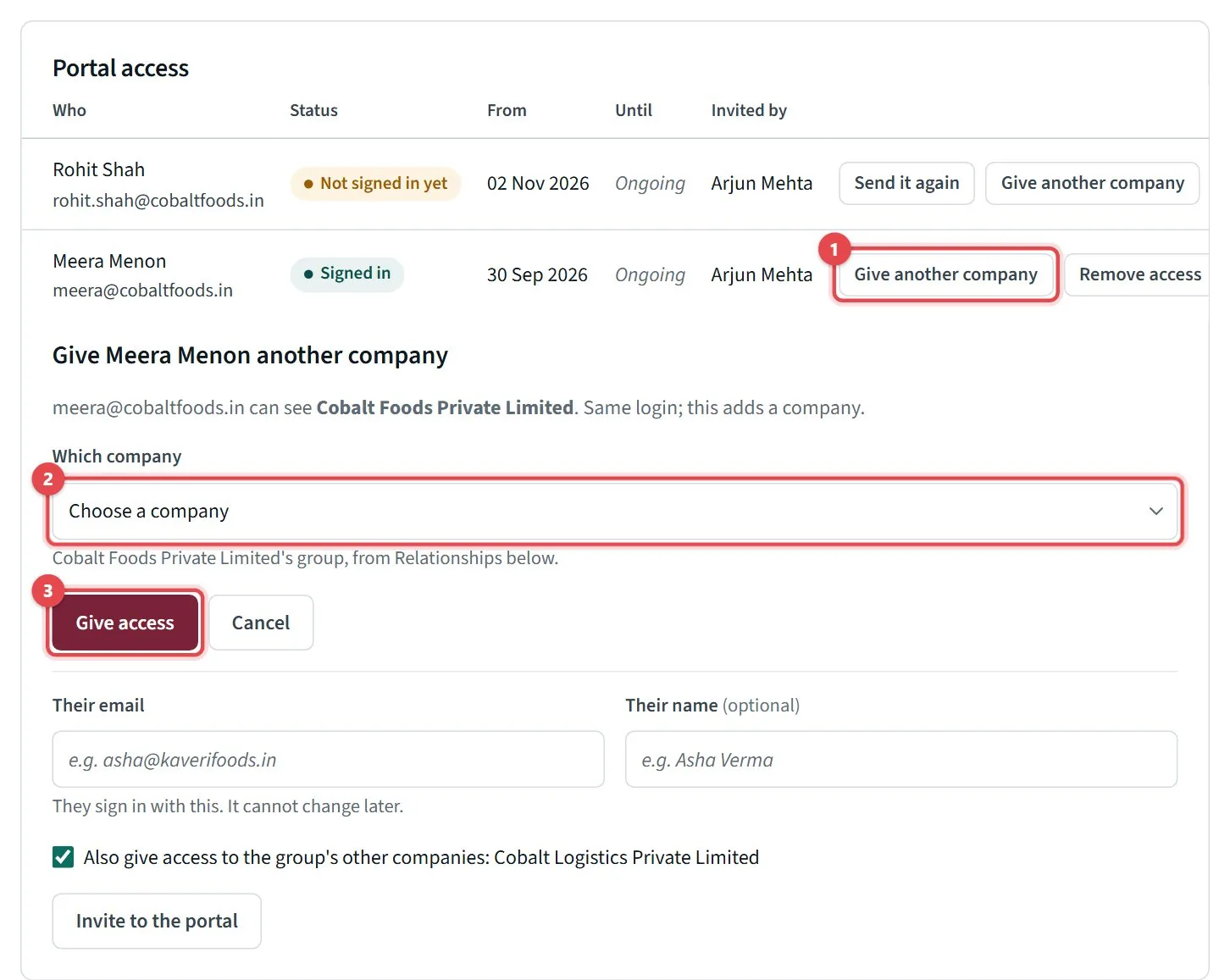 Giving Meera Menon a second company of the Cobalt group. Same login, one more company.
A Granted notice says they can now see that company too, with the same login.
Filings follow the company. Tasks follow the client. Example: Meera Menon sees only Cobalt Foods. She sees the task "GSTR-3B - Cobalt Logistics - July", because that task is filed under the client Cobalt Foods. She does not see Cobalt Logistics' own filings in her list of filings owed. Give her Cobalt Logistics too if she should.
A yellow Same group notice on the card means someone can see the group's other companies but not this one. Click Give them access to … if they should.
A company outside the group cannot be added on this screen today. Inviting the same email again from the other client is refused. Add that company through the client import sheet (a row with Portal Invite set to TRUE), or ask your BiB contact.