Invite someone from a client
Who can do it: Partner
Where: Commercial › Clients , open the client, then Portal access
Before you start: You have the person's own email address.
-
Open the client from Commercial › Clients . In the client's menu, under Client portal, click Portal access.
-
Type Their email. This is their login for good: it cannot be changed later.
-
Type Their name. It is optional, but it makes your lists easier to read.
-
If you see the box Also give access to the group's other companies, choose:
- leave it ticked if this person should also see the other companies named in the box;
- untick it if they should see only this company.
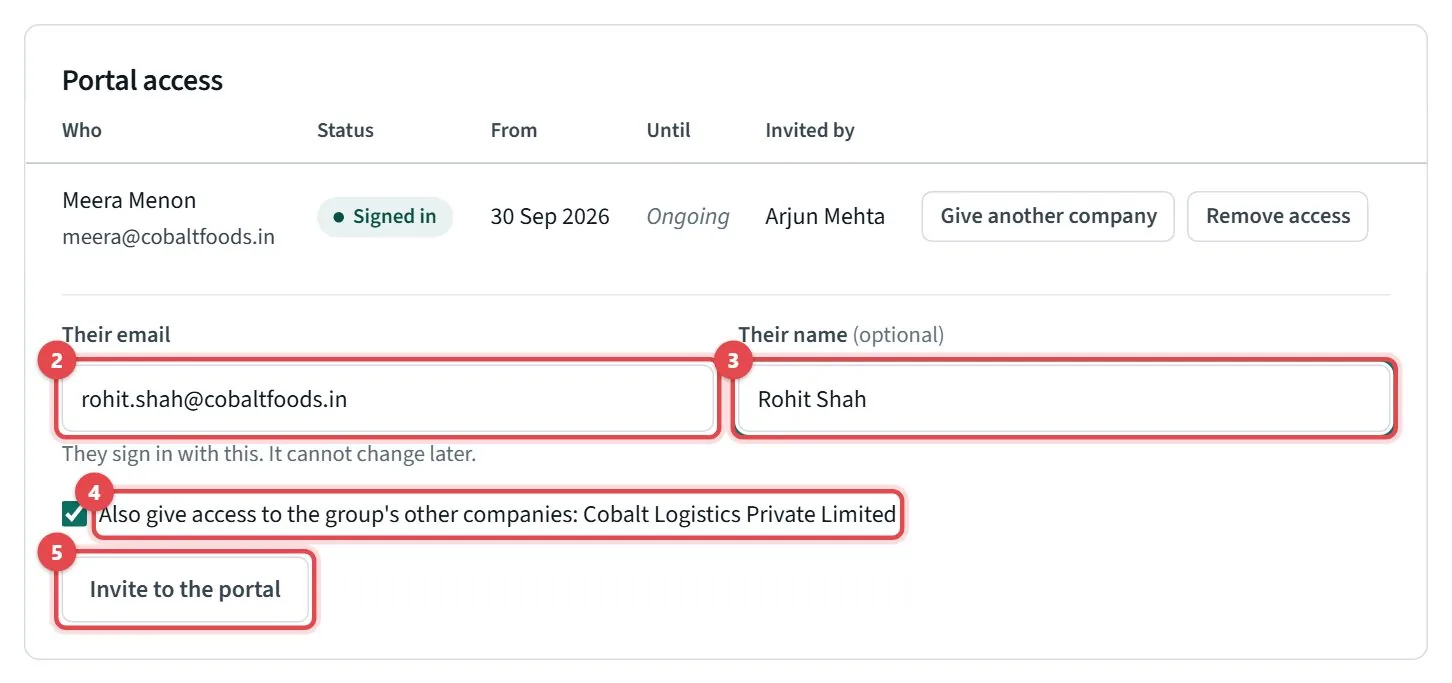 The invite form at the foot of the Portal access card.
- Click Invite to the portal.
A Sent notice confirms the email went out and says the date the link stops working. A new row shows the person with Not signed in yet. It changes to Signed in once they have chosen a password.
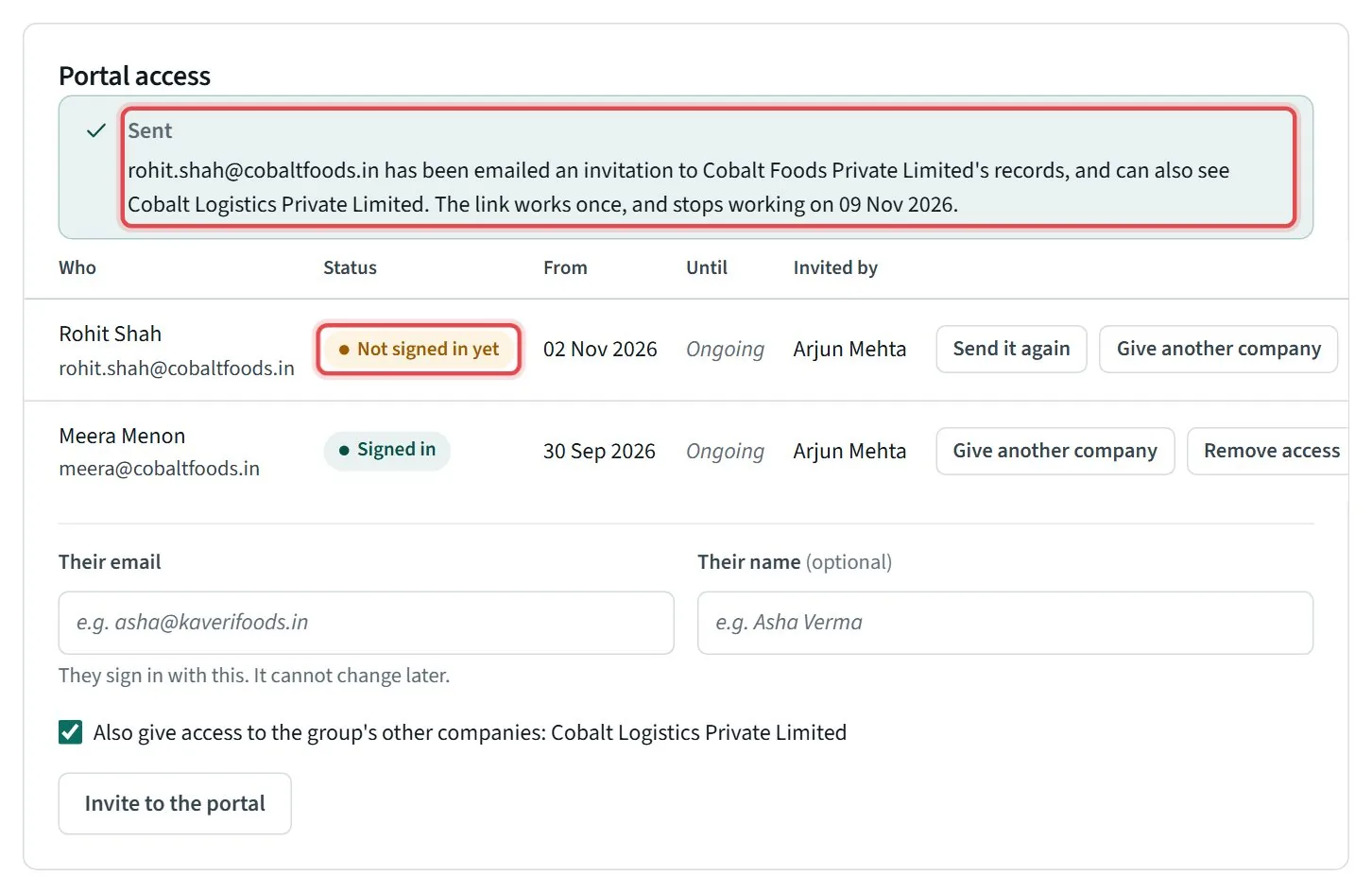 After the invite: the Sent notice, and the new row marked Not signed in yet.
Use the person's own work address, not a shared mailbox. The address is their login. Example: invite rohit.shah@cobaltfoods.in, not accounts@cobaltfoods.in that four people read. Invite each person separately.
Only a partner can see or invite a client's logins. A manager or associate who opens Portal access sees only this line.
 What a manager or associate sees on Portal access.
| You see | Do this |
|---|---|
| "… already has CLIENT_PORTAL access to this firm. …" | This person already has a portal login with you. Do not invite them again. To add a company of the same group, see "Choose which companies they see" below. |
| "… has been archived, so it is not a client to give anybody access to." | The client is archived. Click Restore at the top of the client's page, then invite. |