Add a PAN, GSTIN or email
Who can do it: Partner, manager or associate
Where: Commercial › Clients , then the client, then Identifiers
-
Open the client and click Identifiers.
-
Click Add an identifier. Choose the Type (for example PAN, GSTIN or Email) and type the Value.
-
Tick The main one of its type if this is the one BiB should use.
-
Click Add it.
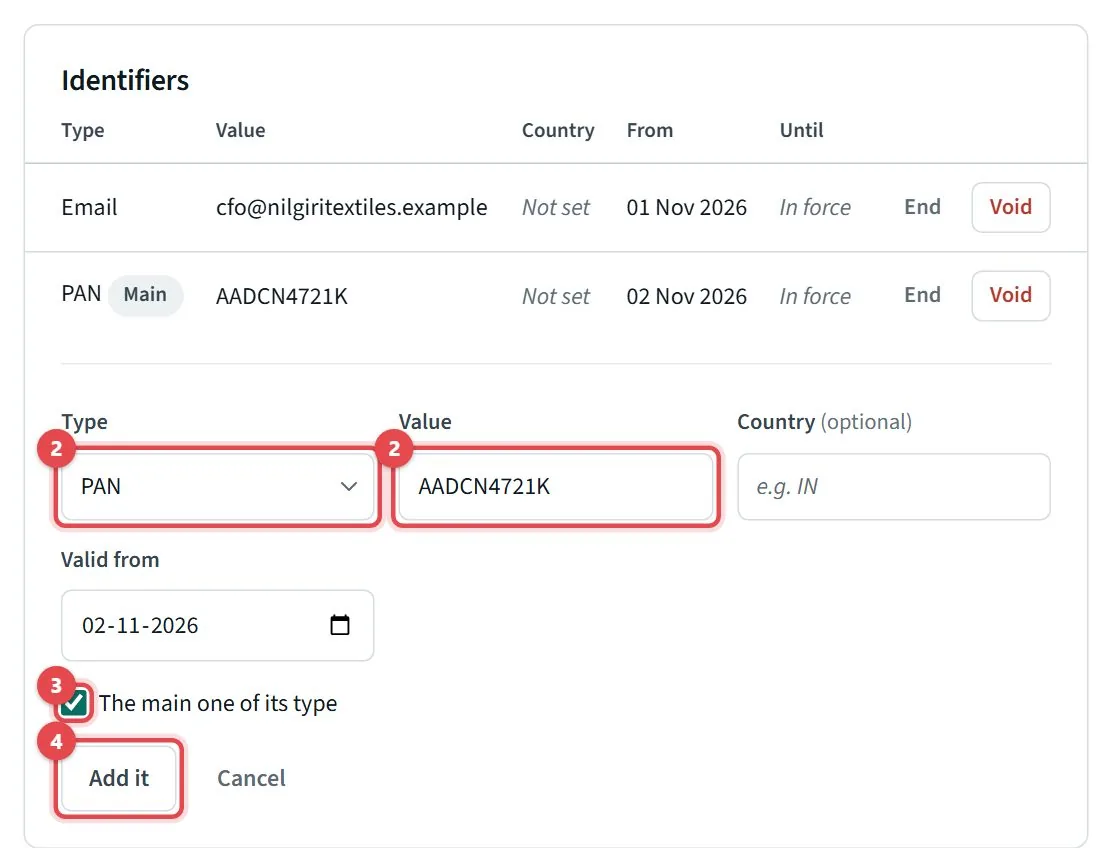 Adding a PAN. The numbers already on file are listed above the form.
The email here is where proposals and DocuSign letters go. When a proposal or letter is addressed to a person, BiB uses that person's email. If the person has none, it uses the company's email from this list. Example: Karthik Raman has his own email, so Nilgiri's letter goes to him, not to the company's general address.
A PAN or email stops duplicates. When someone captures a lead with the same PAN or email, BiB adds it to this client instead of creating a second one.
| You see | Do this |
|---|---|
| "… is not a valid PAN." (or GSTIN, and so on) | Check the length and letters. A PAN has 10 characters, a GSTIN 15. |
To retire an old number, click End on its row (it stays in the history), or Void if it was typed by mistake.