Set payment terms and the advance tax rate
Who can do it: Partner
Where: Settings › The firm › Your firm , then Invoices under Billing
-
Scroll down to Payment terms. If a number is already there, click Change.
-
In Days from the invoice date, type the number of days your clients get to pay, for example
15. Type0if invoices are due on receipt.
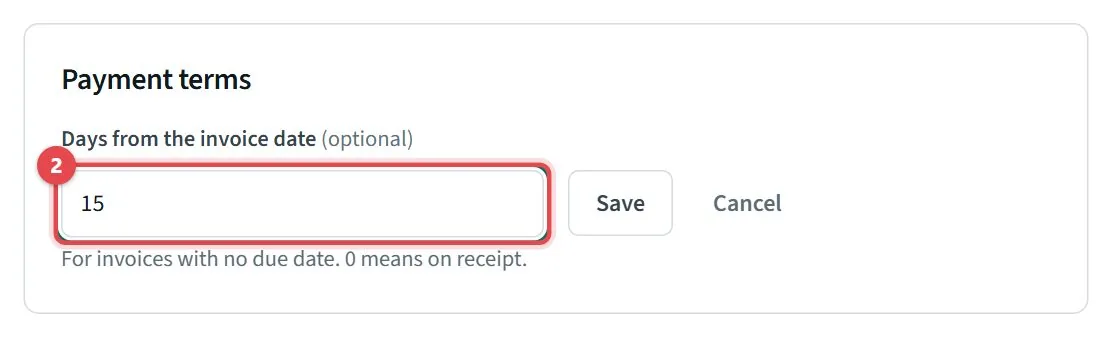 Payment terms: type the days (2), then Save.
-
Click Save.
-
In Tax rate for advance invoices, type the GST rate your advance invoices carry, for example
18, and click Save.
How payment terms work Terms are 15 days. An invoice is issued on 2 November with no due date. It is due on 17 November. A due date someone typed on the draft always wins.
No due date, no chasing. If you leave payment terms empty, an invoice gets a due date only when someone types one. An invoice with no due date is never overdue, so it is never chased.
| You see | Do this |
|---|---|
| "Type a whole number of days, from 0 (due on receipt) to 365, or leave it empty." | Type a whole number, such as 15. |
| "Payment terms can be at most 365 days." | Use 365 or fewer. |