Change your name, photo or password
Who can do it: Everyone
Where: Your name › Your account
-
Open Your account from your own menu.
-
To change your name, click Edit name (2), type it and click Save. For a photo, click Add a photo (2) and choose a PNG, JPG or WebP image up to 20 MB.
-
To change your password, type your Current password, then the new one in New password and Type it again (3). Use at least 12 characters.
-
Click Change password (4).
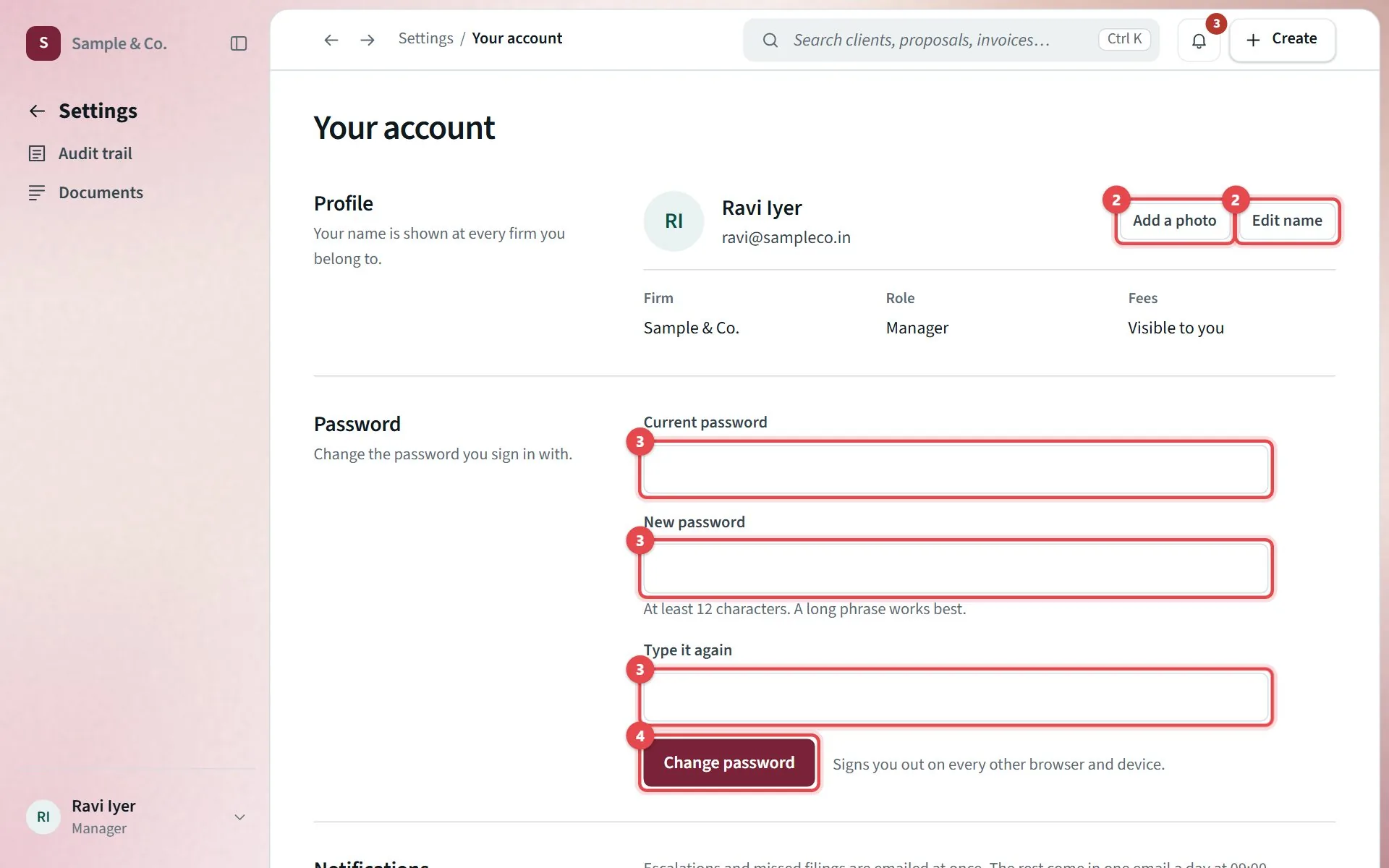 Your account: name and photo (2), password (3 and 4).
BiB says "Your password has been changed." You stay signed in here. Every other browser and device is signed out.
Your name shows at every firm you belong to. Firm, Role and Fees are set by a partner. Fees says Visible to you if you can see prices and money in BiB, or Hidden from you if not.
No password yet? The card says No password yet. Click Email me a link to set one.
| You see | Do this |
|---|---|
| "The two new passwords do not match." | Type the new password again in both boxes. |
| "That is not your current password. Check it and try again." | Type the password you sign in with today. Forgotten it? Sign out and use Forgot your password? |
| "Too many tries at your current password. Try again in … minutes." | Wait that many minutes. |
| "Choose a PNG, JPG or WebP image." | Save the photo in one of those types first. |
| "A photo can be up to 20 MB. Choose a smaller one." | Pick a smaller photo. |
| "Give your name, up to 200 characters." | Type your name. It cannot be empty. |