Add a service
Who can do it: Partner (an admin who can see fees)
Where: Commercial › Catalogue › Add a service
Before you start: Your Depts and delivery teams are on Settings › The firm › Structure . The process a service follows is on Settings › How work runs › Processes ; you can add it later.
-
Click Add a service.
-
In Basics, type the Name. If you like, type your firm's own Code (it prints on proposals) and choose the Dept and Delivery team.
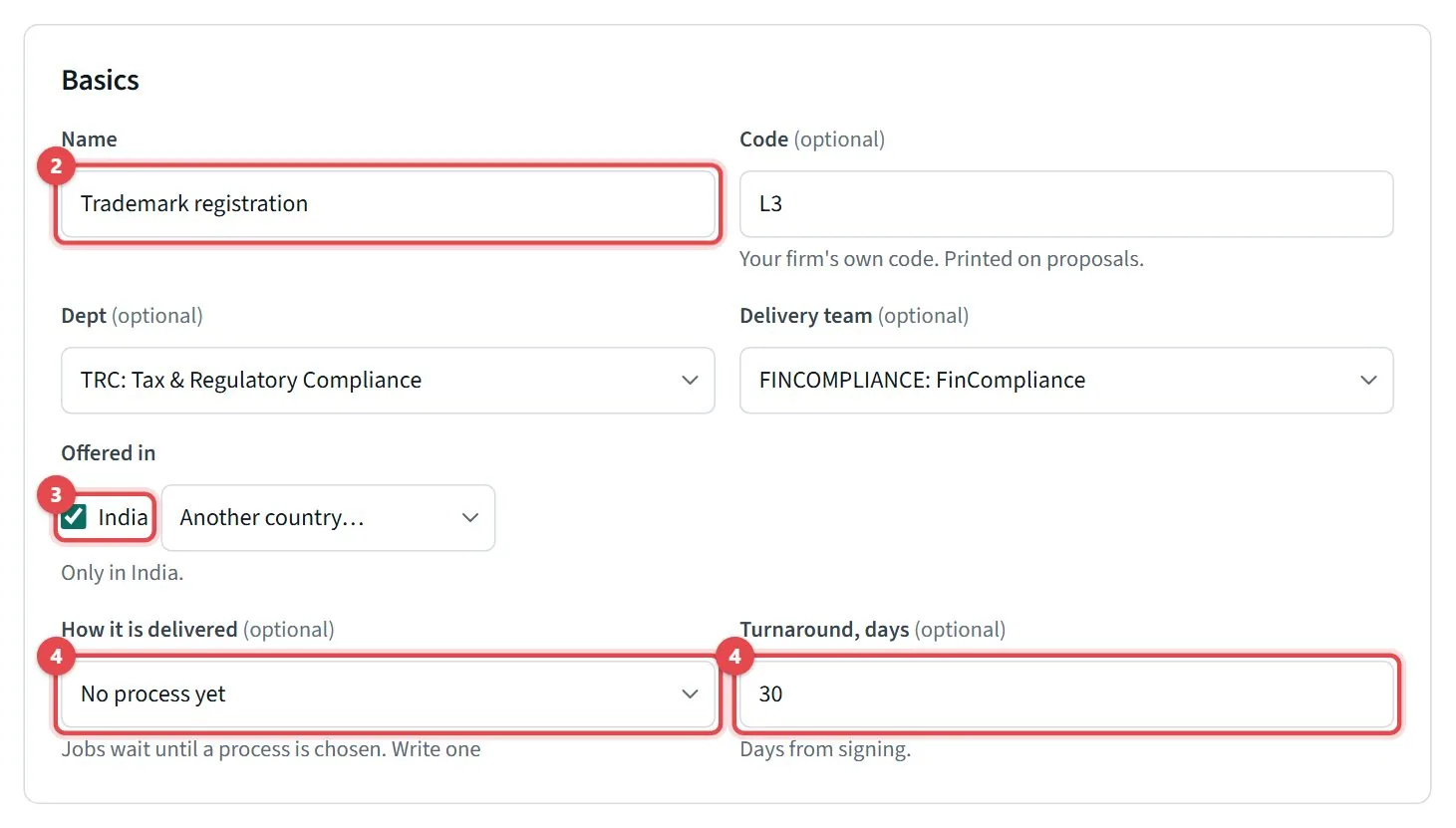 The Basics card. The numbers match the steps.
-
Under Offered in, tick the countries where you sell it. Tick none if you sell it everywhere.
-
Choose How it is delivered (the process its jobs follow) and type Turnaround, days.
-
In Price, type the Amount and check the Currency. Choose How often and Charged as. Add a Pricing note if you need one, for example "Plus government fees at actuals".
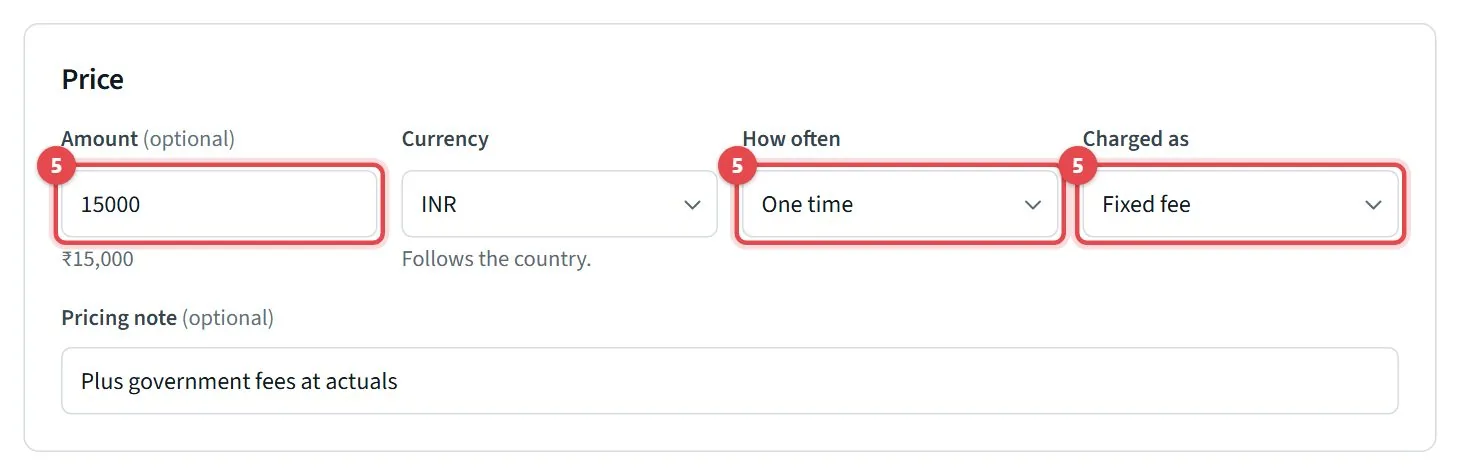 The Price card.
-
In Tax on the invoice, type the SAC (India) and the GST rate %. Your Indian company's invoices use them.
-
In What’s included, fill the four boxes. They become this service's wording on every letter and proposal (see the table below).
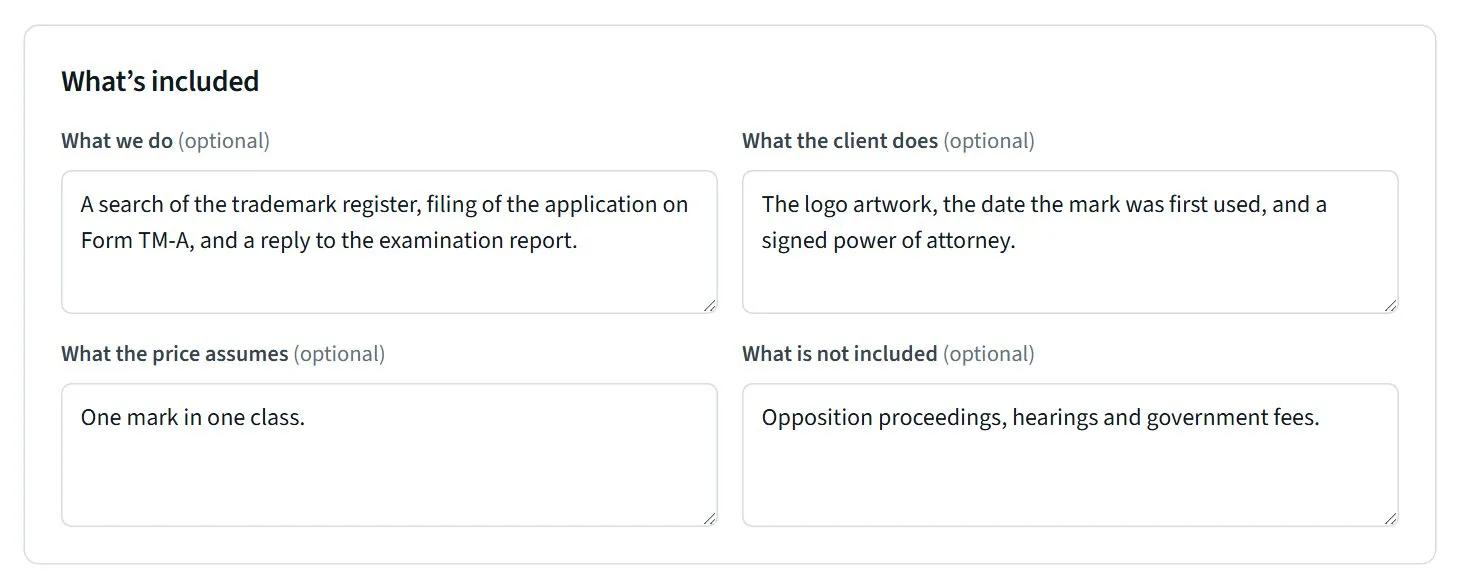 The four boxes that describe the service to the client.
-
If the service creates legal filings (GST returns, TDS returns), click Add a filing under Compliance filings and pick them. You can also do this later.
-
Click Add the service to make it live now, or Save as draft to finish it later.
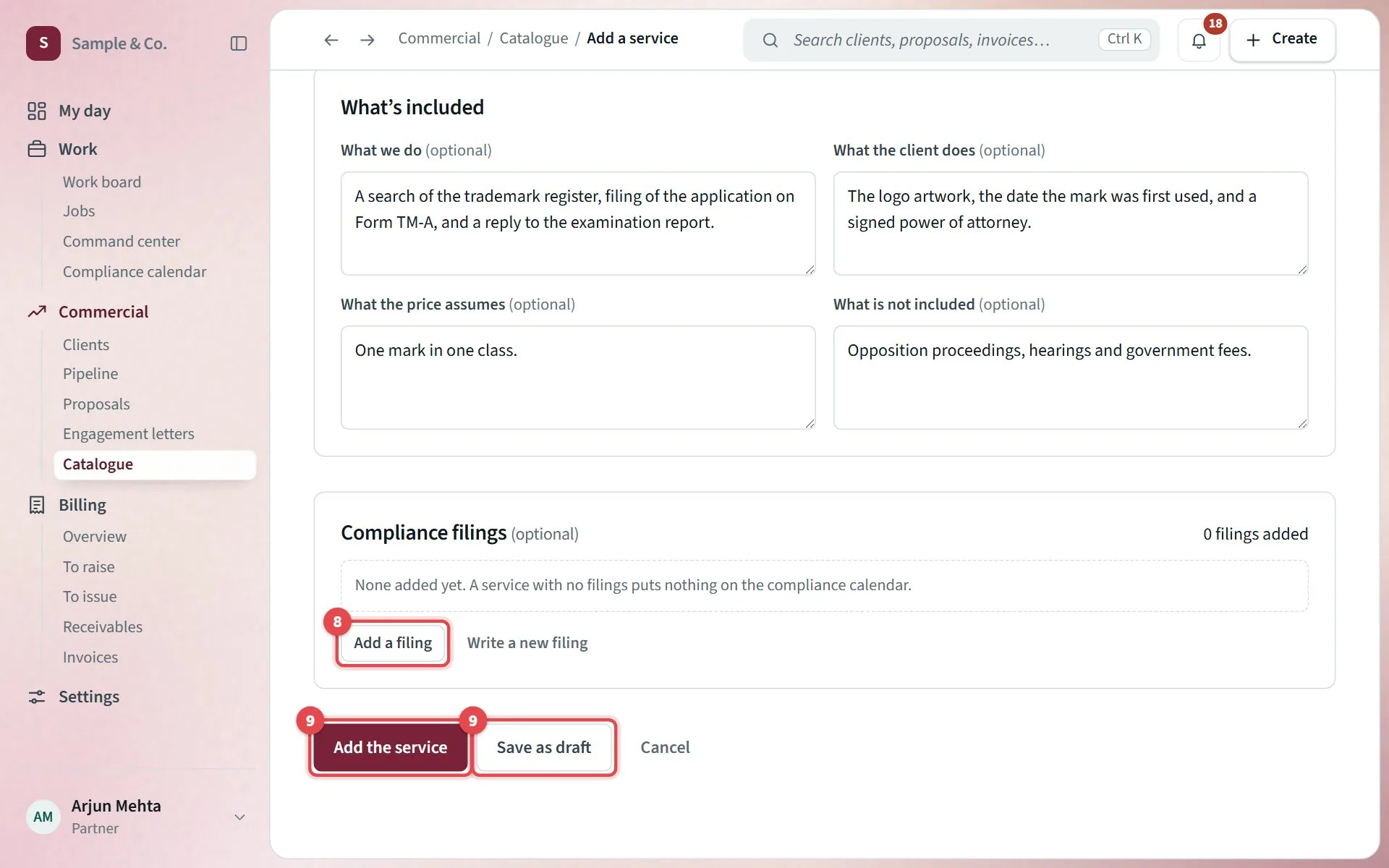 Add the filings, then add the service.
The service's own page opens and says it is added. A live service can go on proposals and letters at once.
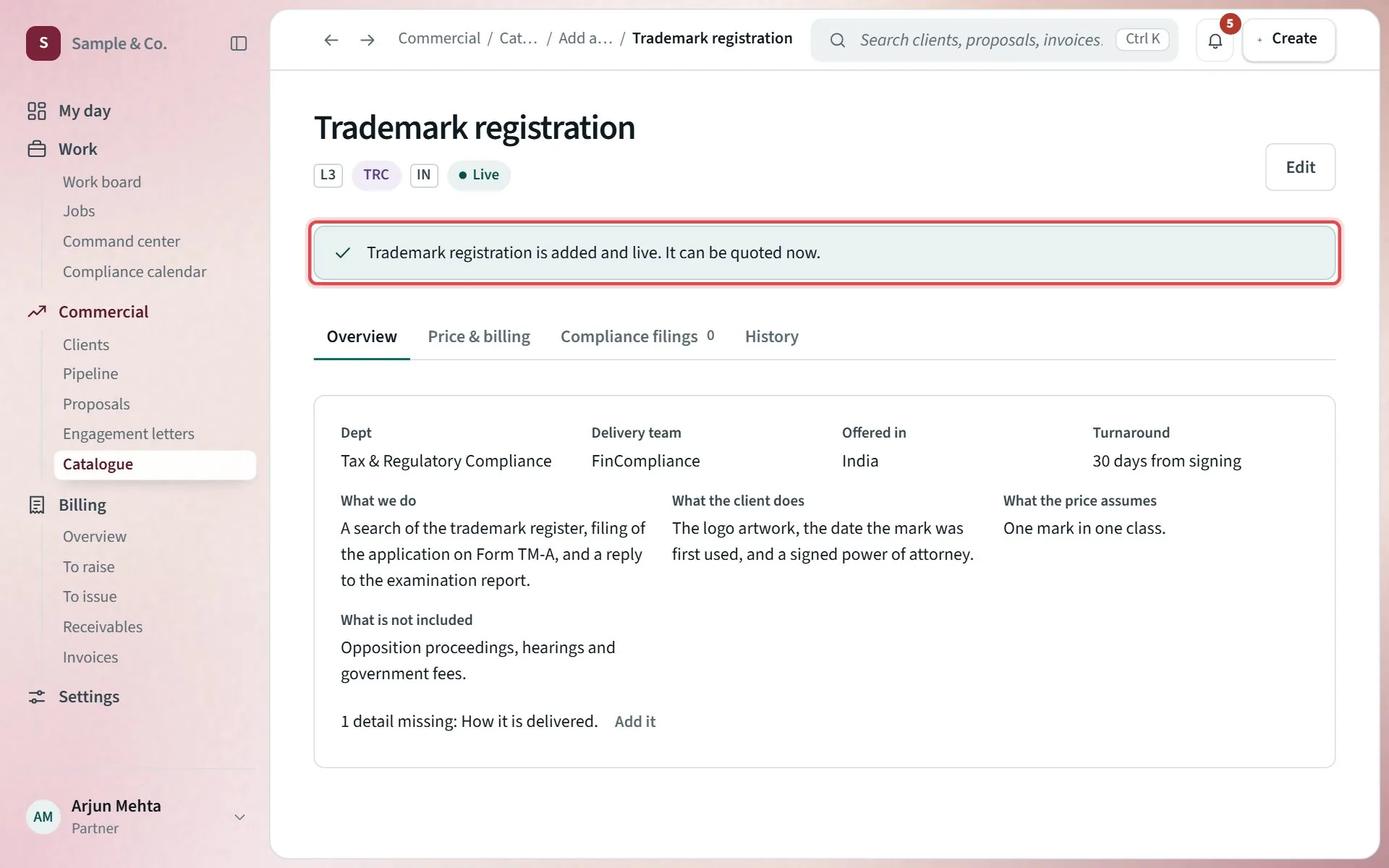 A new service, live and ready to quote.
Where the four boxes print on an engagement letter (Annexure 1, under the service's name):
| Box on the form | Printed on the letter as |
|---|---|
| What we do | the service's main paragraph |
| What the price assumes | "Volume limits" |
| What the client does | "Client's responsibilities" |
| What is not included | "Exclusions" |
How often decides how the work comes round, not only how it is billed Monthly, Quarterly or Yearly makes a new job every period. One time makes one job when the client signs. Example: "GST monthly filing" is Monthly, so a client gets an April job, a May job, and so on.
Turnaround, days For a monthly, quarterly or yearly service it counts from the end of each period; for any other service, from signing. Example: Monthly with 10 means April's work is due on 10 May.
No process yet A service with No process yet can be sold, but its jobs wait until you choose a process for it.
No price? Leave Amount blank to quote each client separately. The letter then prints your Pricing note, or "To be agreed".
If something goes wrong:
| You see | Do this |
|---|---|
| "Give the service a name, e.g. UAE bookkeeping." | Type a Name. |
| "Numbers only, e.g. 25,000." | Type the Amount in figures only. |
| "Whole days only, e.g. 10." | Type a whole number of days. |
| "Six digits starting 99, e.g. 998222." | Check the SAC (India). |
| "A rate from 0 to 100, e.g. 18." | Check the GST rate %. |
| "This code is no longer on your firm's list. Pick one." | The Dept or team was removed from Structure. Pick another. |
| "Only an administrator can add a service." or "A service carries its price, so it is added by somebody who can see fees." | Ask the partner to add it. |
| "It is saved as a draft but was not published: …" | Fix what the message says, then click Publish on the service's page. |