Write the opening and the acceptance paragraph
Who can do it: Partner
Where: Settings › Documents › Standard prose
-
Open Settings, click Documents, then Standard prose. The table at the top shows which wording each of your companies uses.
-
Stay on the Default tab.
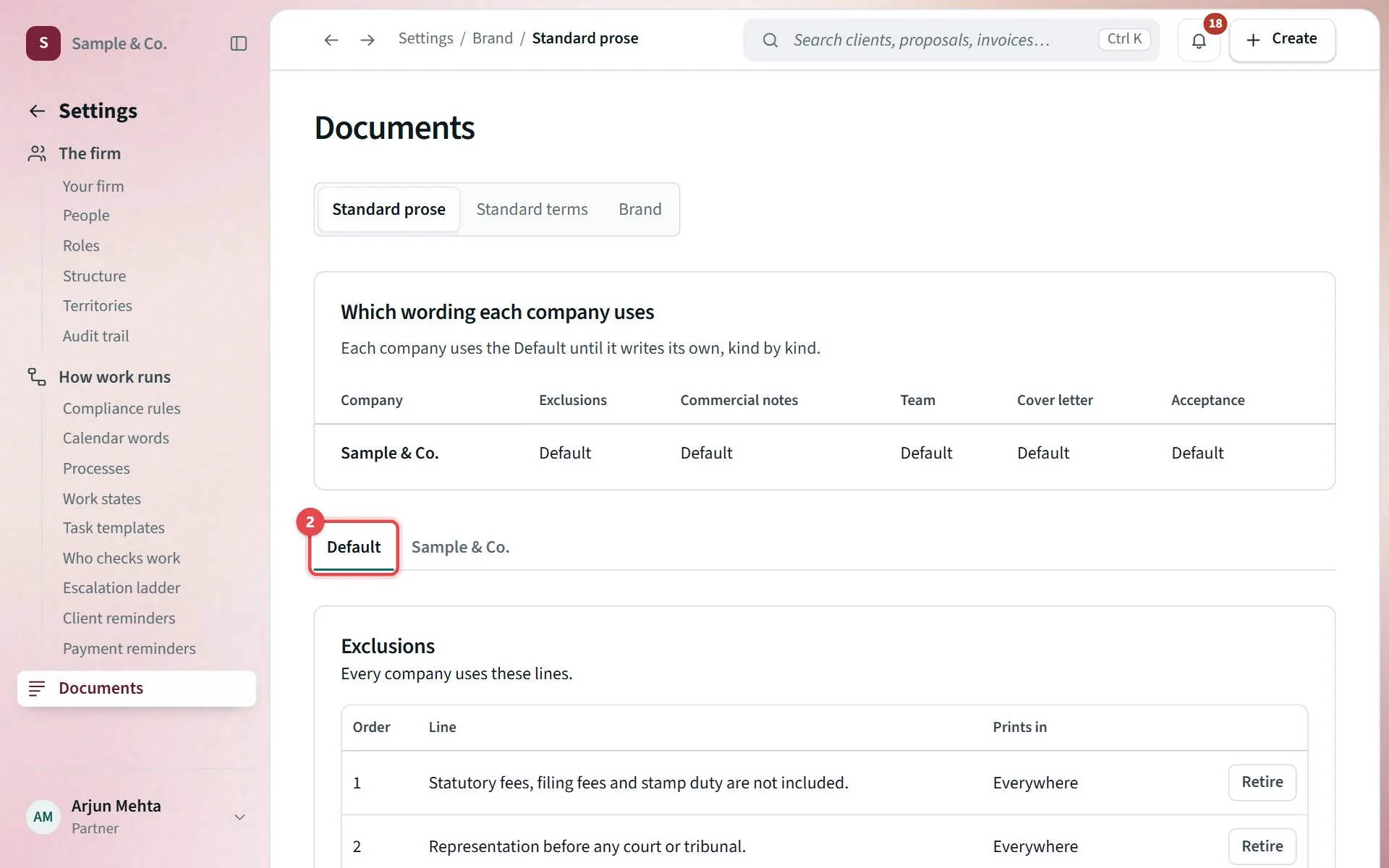 Standard prose: the firm's standard wording, kind by kind.
-
In the Cover letter card, click Add a paragraph and type it in New paragraph. (For the client's acceptance, use the Acceptance card instead.)
-
Type the Order: 1 prints first, then 2, and so on.
-
Leave Prints in at Every country, or choose the one country it is for.
-
Click Add line.
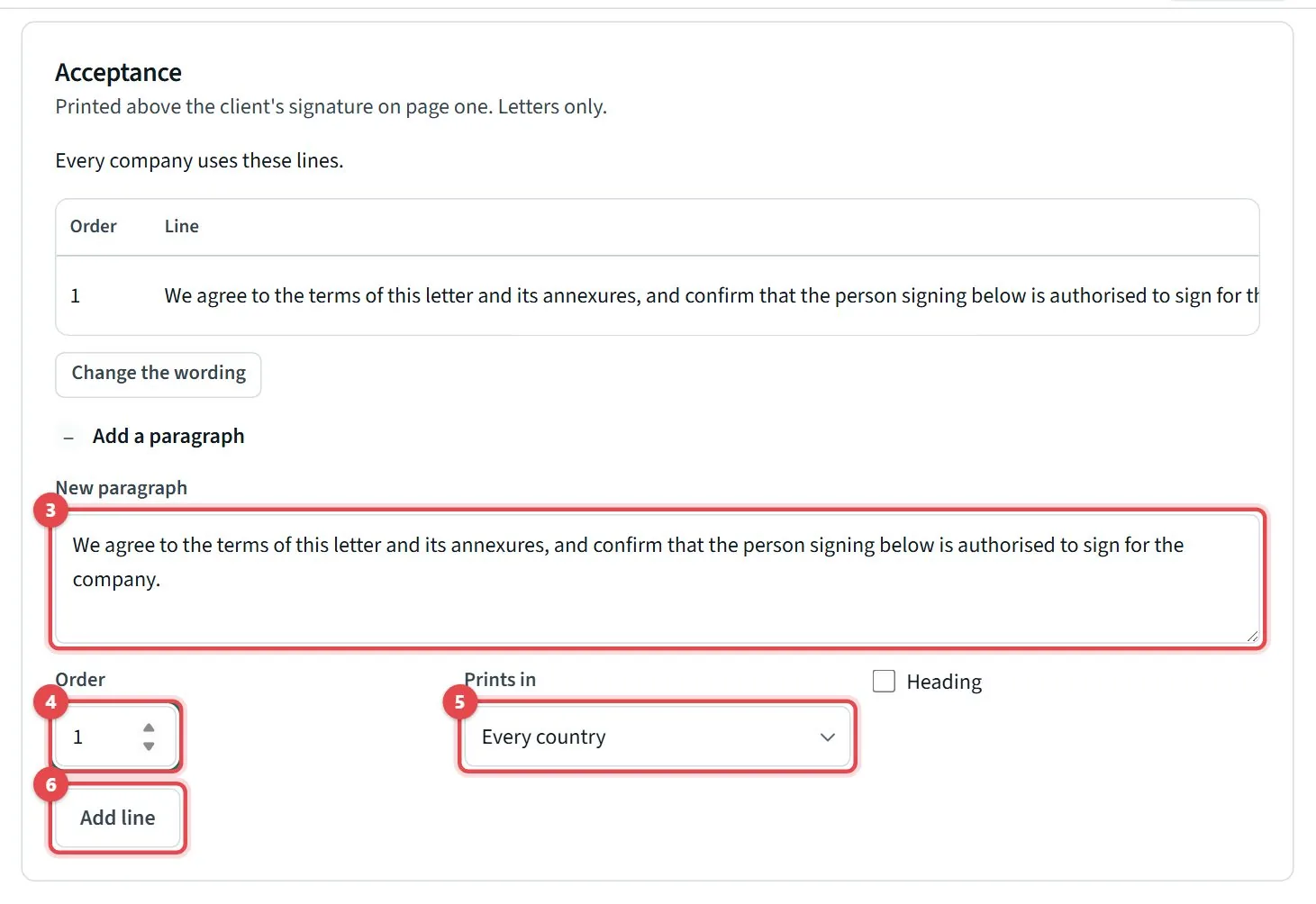 Adding the paragraph printed above the client's signature.
- Repeat for each paragraph. To change paragraphs already there, click Change the wording, edit them, and click Save the wording. If the paragraphs do not open, click Retire on the old one and add the new words with Add a paragraph.
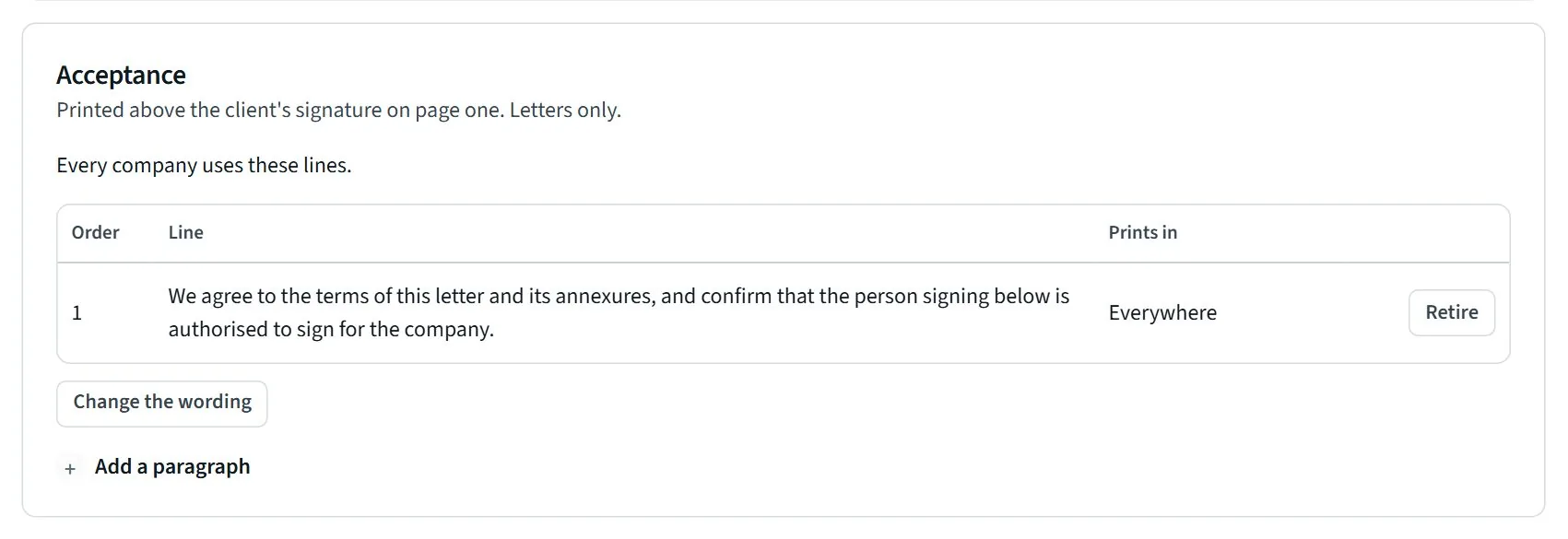 The Acceptance card after adding the paragraph.
Cover letter prints on page 1 after "Dear …,". Acceptance prints above the client's signature. Both print on letters only, never on proposals.
Write an acceptance paragraph Until you do, every letter warns "No acceptance line above the client's signature." and the client signs under a heading with nothing above it.
Prints in looks at the client's country Example: a line set to India prints for an Indian client and is left off a UAE client's letter.
| You see | Do this |
|---|---|
| On a letter: "No opening paragraph in the cover letter." | A letter cannot be sent without one. Write it on the letter, and set the standard one here for future letters. |