Issue invoices
Who can do it: Partner (or a role your firm gave the right to issue)
Where: Billing › To issue
Issuing gives a draft its number and date, locks it, and shows it to the client on their portal.
- Open Billing › To issue . Each draft's Status says Ready, or names what to fix, such as No lines or Due date. Click a status to read the full reason.
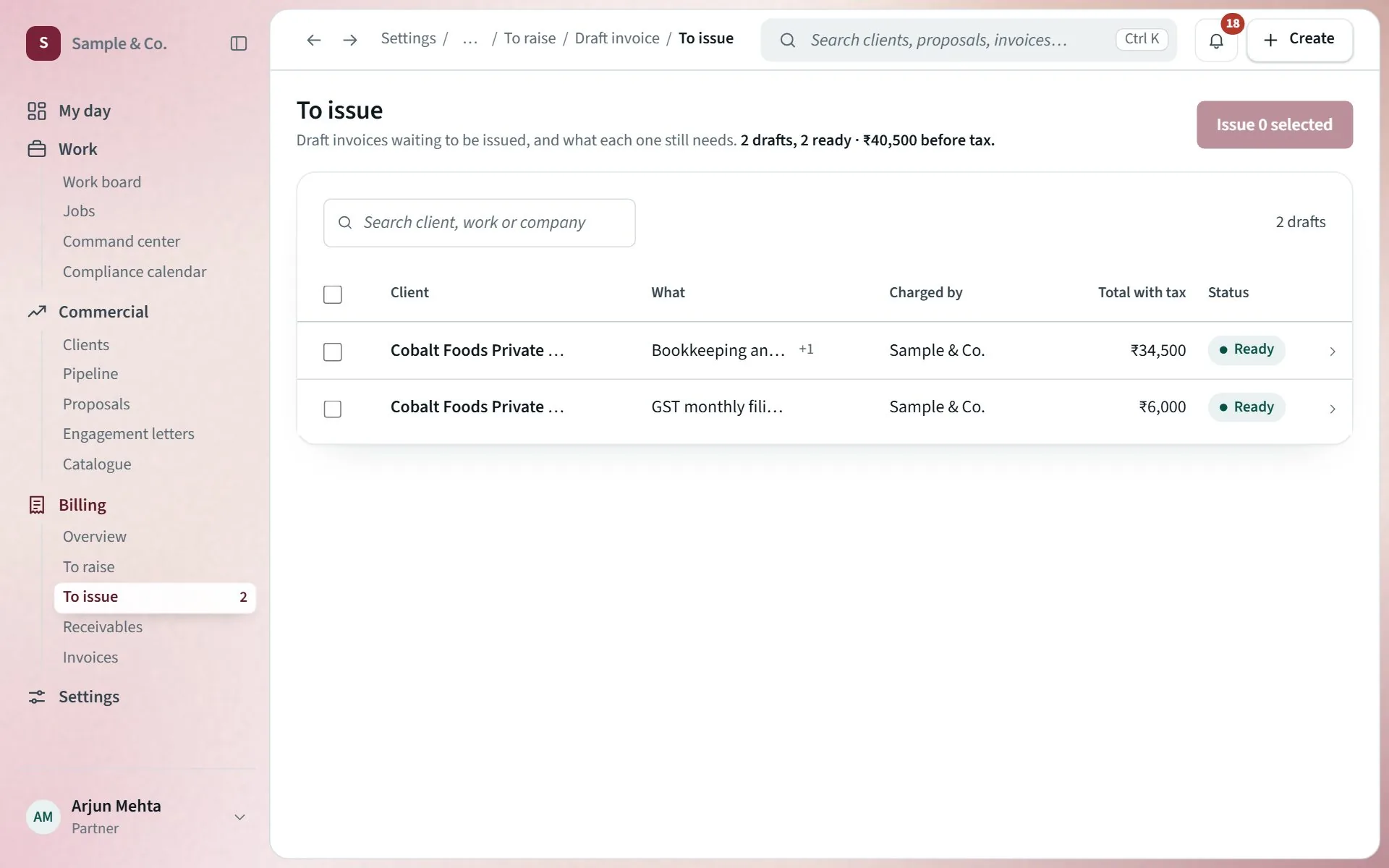 To issue: the drafts, oldest first, each with its status.
-
Tick the drafts that are ready.
-
Click Issue 1 selected (the number changes with your ticks).
-
Read the box. It says which company's series the numbers come from. Click Issue 1 invoice.
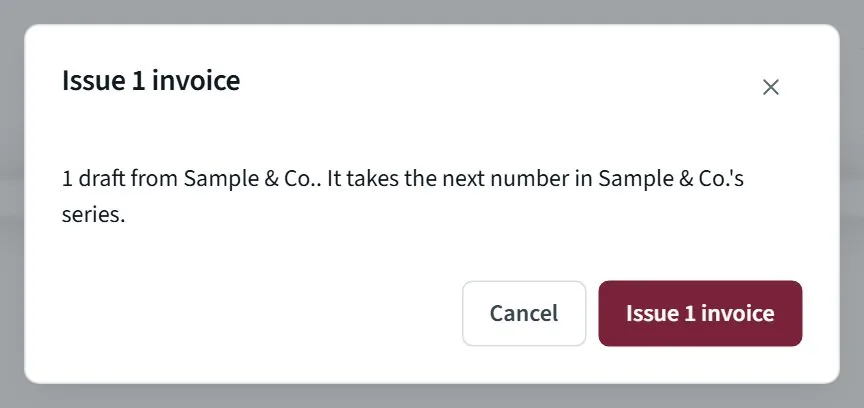 The box names the series the numbers come from.
- Click Done.
Each draft now shows its number, or Not issued with the reason.
 The new number.
To issue a single draft from its own page, click Issue, read "Issue this invoice?", and click Issue it.
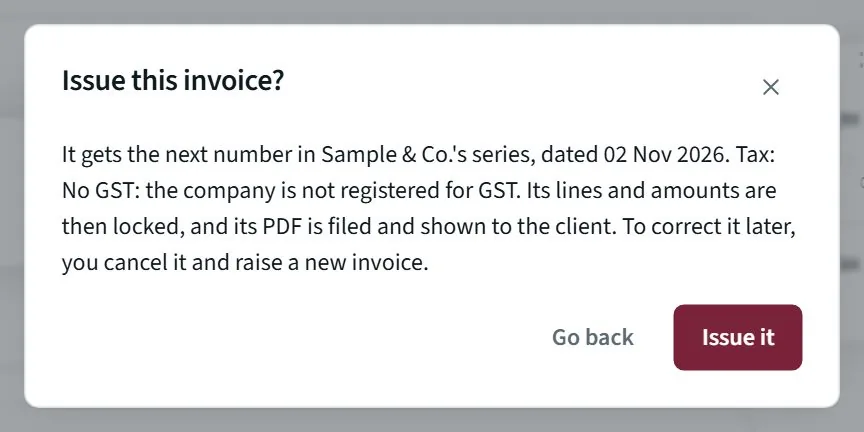 Issuing from the draft's page.
A manager sees the draft with "Waiting for someone who can issue invoices." and no Issue button.
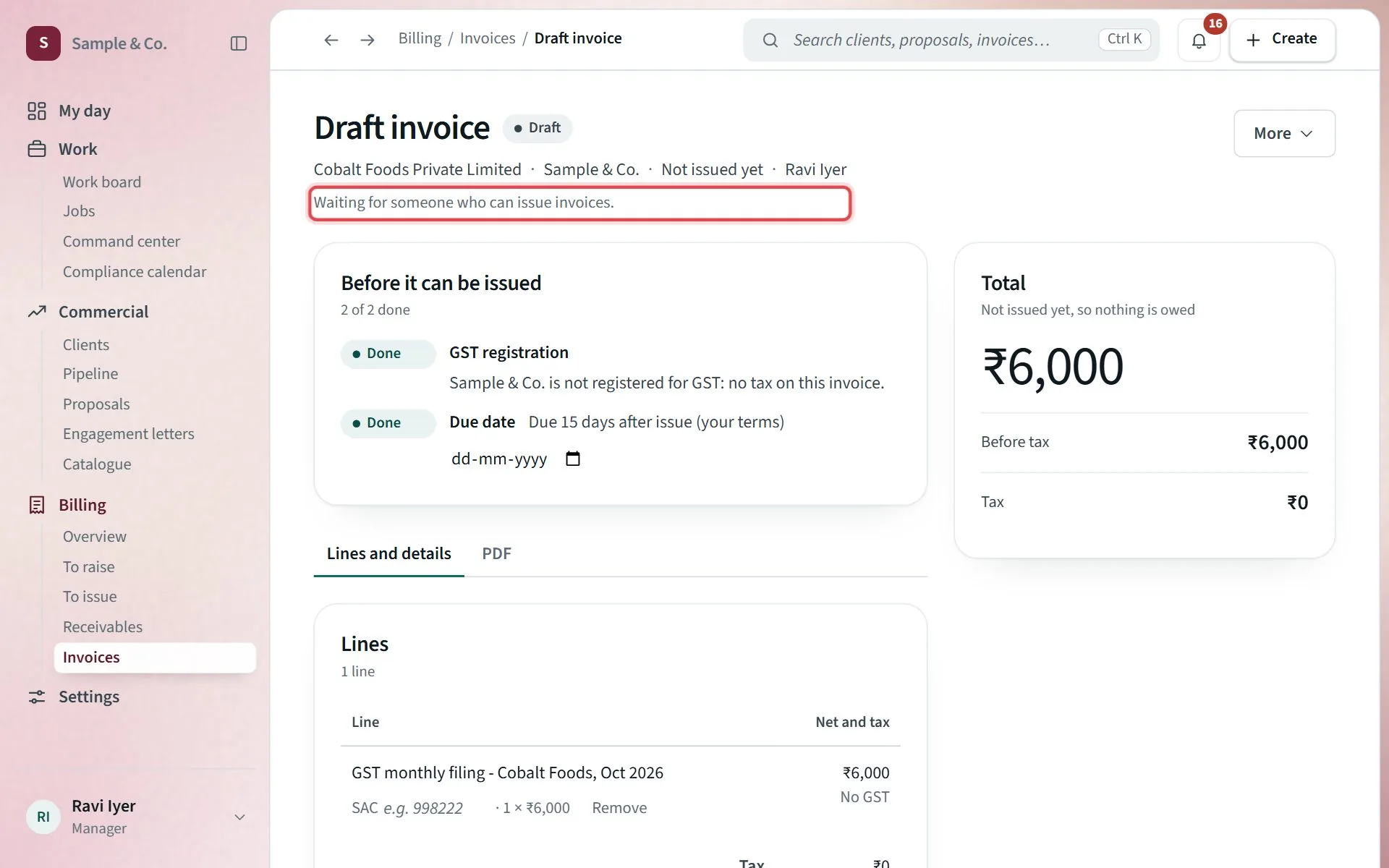 What a manager sees on a draft.
An issued invoice cannot be edited To change an issued invoice, issue a credit note for the difference, or cancel it and raise a new one.
Not happy with a draft? Send it back On the draft, open More and click Send back. Write what needs fixing in What needs fixing? and click Send back. The draft then shows Sent back on Billing › To issue , with your note, until someone fixes it.
Issue is greyed out? Point at it to read what to fix first, for example "Fix first: …".