Work through a job's steps
Who can do it: Partners, managers and associates
Where: Work › Jobs , click a job (or The job on its task)
-
The steps are in order. Each says where it stands, such as Waiting for you, After an earlier step or Done, and whose desk it is on.
-
If a sub-step list shows, tick each line. A line that does not apply: click Not applicable and type Why does it not apply?, then Save.
-
Not your step? Click Take it. To give your step to someone else, choose them under Hand to… and click Hand over (3).
-
Need something from the client? Click Ask the client on the step (see "Ask the client for something").
-
When the step is done, click Done (5).
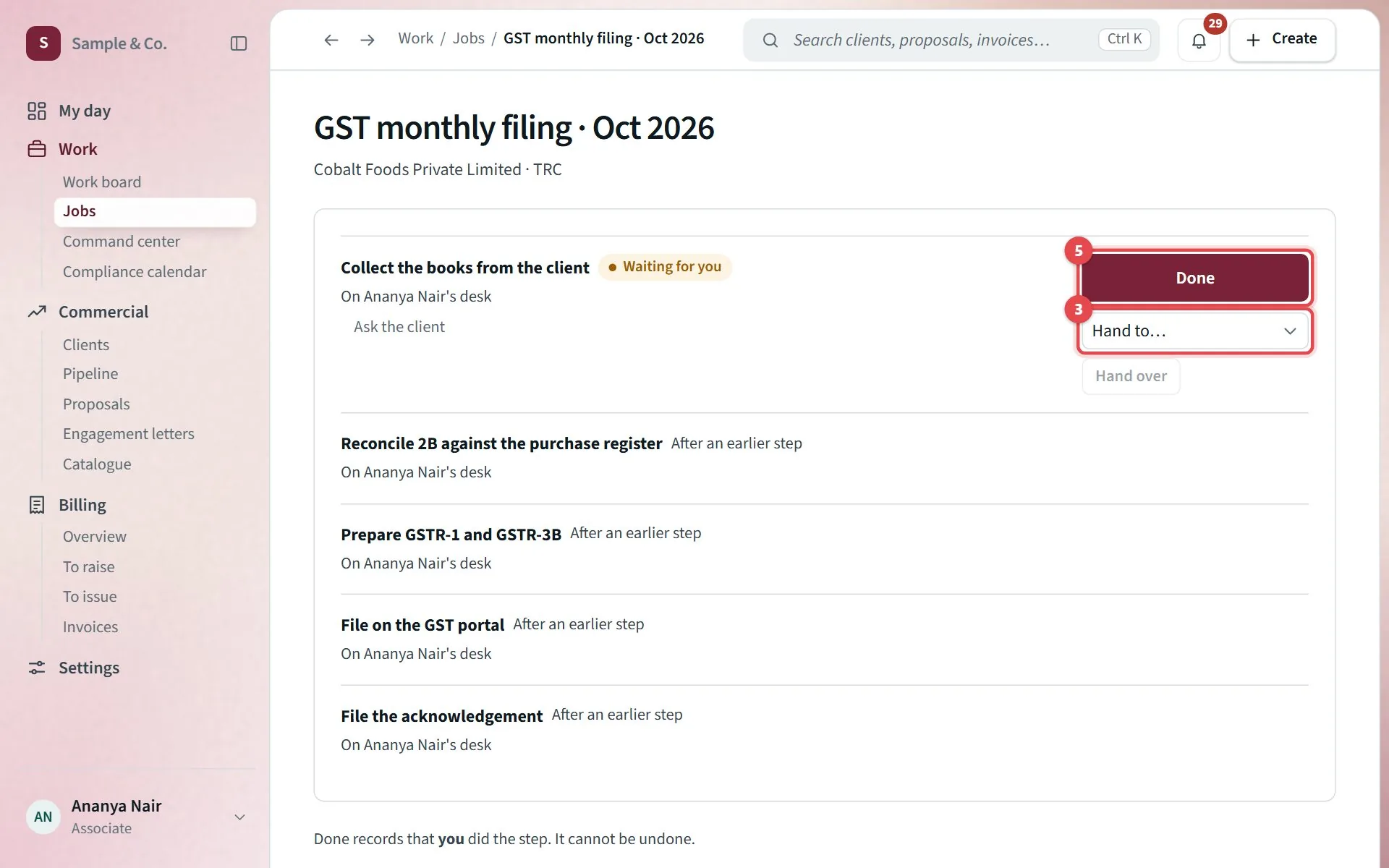 The October GST job for Cobalt Foods, as the associate sees it.
- Read the box and click Mark it done.
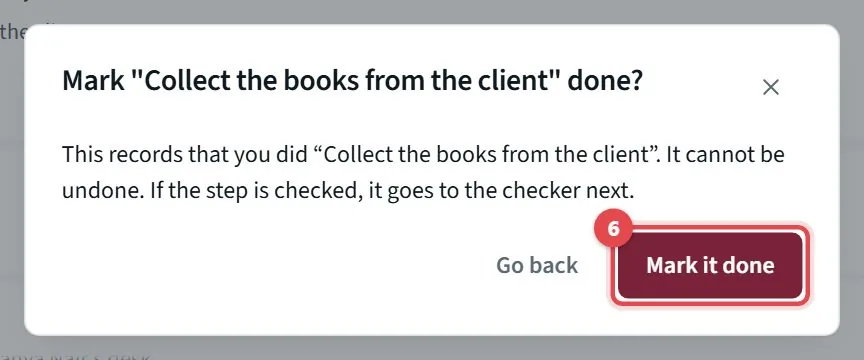 Done cannot be undone. A checked step goes to the checker next.
The next step opens on its own within a few minutes. A step that is checked shows Done, waiting to be checked and goes to the checker's To check tab on Jobs.
A step that never applies to this client. There is no Skip button. Ask whoever manages Processes (a partner or admin) to add an Only do this step when… condition to that step.
Checking a step. On Work › Jobs , the To check tab lists steps waiting for you. Open one, tick its review points, then click Approve, or Send back and write What needs fixing? The person who did it can never check it.
A partner or manager can click Cancel job at the top of a job. Its open steps and tasks leave every desk and cannot be reopened.